How to Set Up Your Pharmacy Information and Availability
Overview
Setting up your pharmacy information in Phox Hub is the first step to getting your pharmacy online and ready for patient bookings. This guide will walk you through each step of the process.
Pro Tip: Complete your pharmacy setup in one session to ensure all information is consistent and ready for patients.
Setting Basic Information
Step 1: Access Pharmacy Settings
- Log in to your Phox Hub dashboard
- Navigate to Settings in the main menu
- Select Pharmacy Information
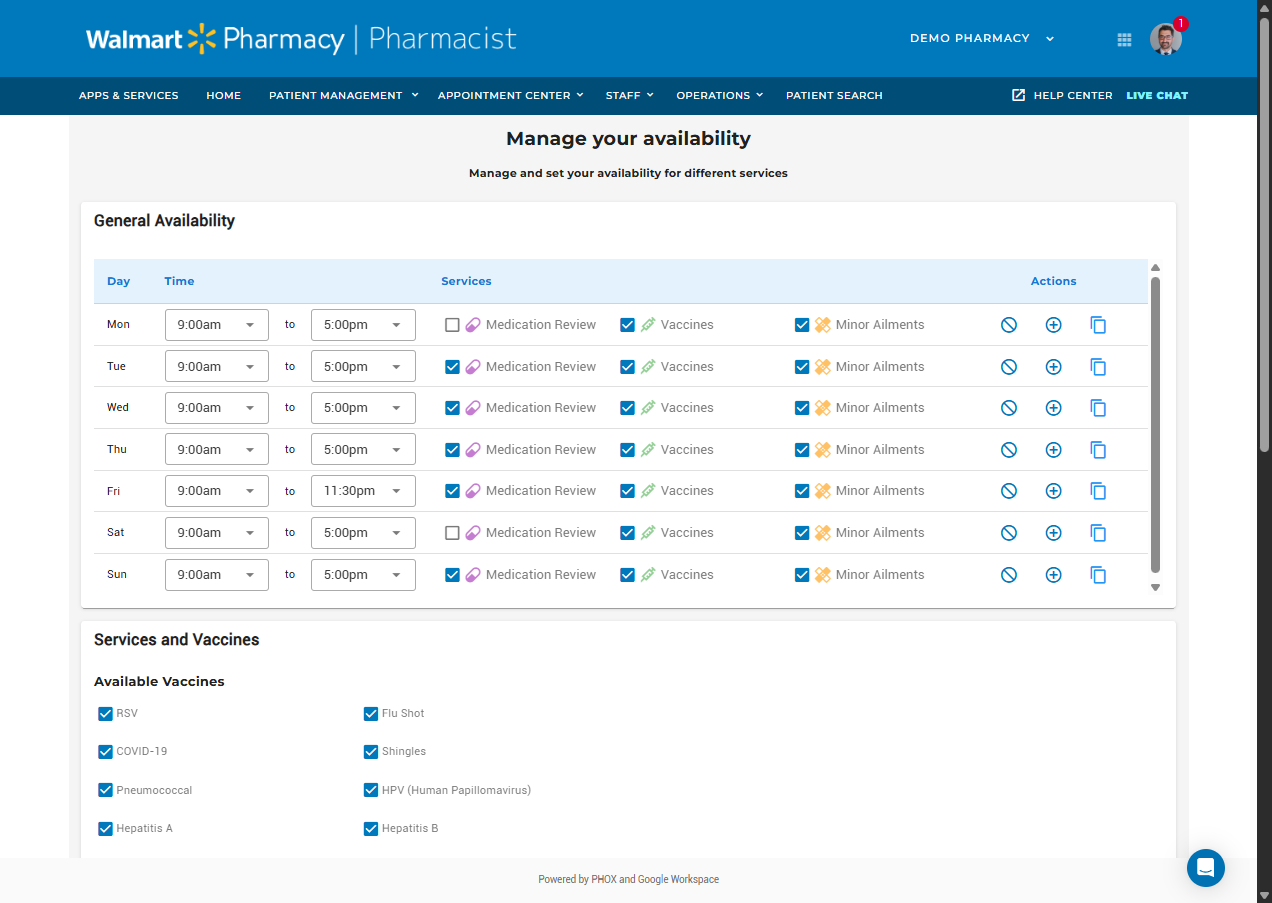
Step 2: Enter Basic Details
Enter your official pharmacy name as registered
Main contact number for patients
Complete street address including postal code
Primary email for patient communications
Configuring Operating Hours
Setting Regular Hours
Phox Hub automatically syncs with Google Business hours if available, but you can customize them:
Important: Changes to operating hours will affect all future appointments. Existing appointments remain unchanged.
Holiday Hours
Set special hours for holidays:
- Click Add Holiday Hours
- Select the date
- Choose "Closed" or set custom hours
- Add a note for patients (optional)
Adding Services
Common Pharmacy Services
Vaccinations
- Flu shots
- COVID-19 vaccines
- Travel vaccines
Medication Reviews
- Comprehensive reviews
- Follow-up consultations
- Compliance packaging setup
Clinical Services
- Blood pressure monitoring
- Diabetes management
- Minor ailment prescribing
Adding a New Service
- Click Add Service
- Enter service name and description
- Set appointment duration (15, 30, 45, or 60 minutes)
-
Configure booking rules:
- Advance booking required (hours/days)
- Maximum daily appointments
- Required patient information
- Click Save Service
Managing Team Members
Adding Team Members
Each team member can have their own login and availability:
Pharmacist
- Full access to patient records
- Can manage appointments
- Prescription authority
Pharmacy Technician
- View patient records
- Manage appointments
- Limited prescription access
Administrative Staff
- Appointment management
- Basic patient information
- No prescription access
Invitation Process
- Go to Team Management
- Click Invite Team Member
- Enter their email address
- Select their role
- Choose services they can provide
- Send invitation
Setting Availability
Individual Availability
Each team member can set their own availability within pharmacy hours:
Example: Dr. Smith (Pharmacist)
Booking Rules
- Minimum 2 hours advance notice for bookings
- Maximum 20 appointments per day
- 15-minute buffer between appointments
- Block lunch hours automatically